Minecraft on the Nintendo Switch has carved out a unique niche in the gaming landscape, it’s the version you can take anywhere without compromising the core experience that’s hooked millions of players worldwide. Whether you’re building a survival base during your morning commute or exploring the Nether in docked mode on your living room TV, the Switch version delivers the full blocky sandbox with surprising flexibility. But it’s not without its quirks.
Understanding the platform-specific features, limitations, and optimization tricks can mean the difference between a smooth creative session and a laggy mess that crashes right before you save. This guide covers everything a Switch player needs to know in 2026, from setup and performance benchmarks to multiplayer options and marketplace navigation. Let’s dig in.
Table of Contents
ToggleKey Takeaways
- Minecraft on Switch offers unmatched portability with hybrid docked and handheld modes, delivering the full sandbox experience without compromising gameplay despite the 30 FPS cap and lower render distance.
- The OLED model provides 4.5–6.5 hours of handheld battery life, which can be extended to 5.5–6 hours on Minecraft Switch by lowering brightness, render distance, and disabling particle effects.
- Cross-platform play via Bedrock Edition lets you sync worlds, achievements, and progress across Xbox, PlayStation, PC, and mobile devices using a single Microsoft account.
- A 128 GB microSD card is essential for storing Minecraft on Switch worlds and Marketplace content, as the standard 32 GB internal memory fills quickly with texture packs and adventure maps.
- Local wireless supports up to eight Switch consoles for LAN play, while split-screen multiplayer allows four players on a single Switch with one TV, making Minecraft on Switch ideal for family gaming sessions.
- Realms subscriptions ($3.99–$7.99/month) provide persistent 24/7 servers for up to 10 players with automatic daily backups, eliminating the need for host presence and enabling collaborative builds with cross-platform friends.
Why Minecraft on Switch Is the Perfect Portable Experience
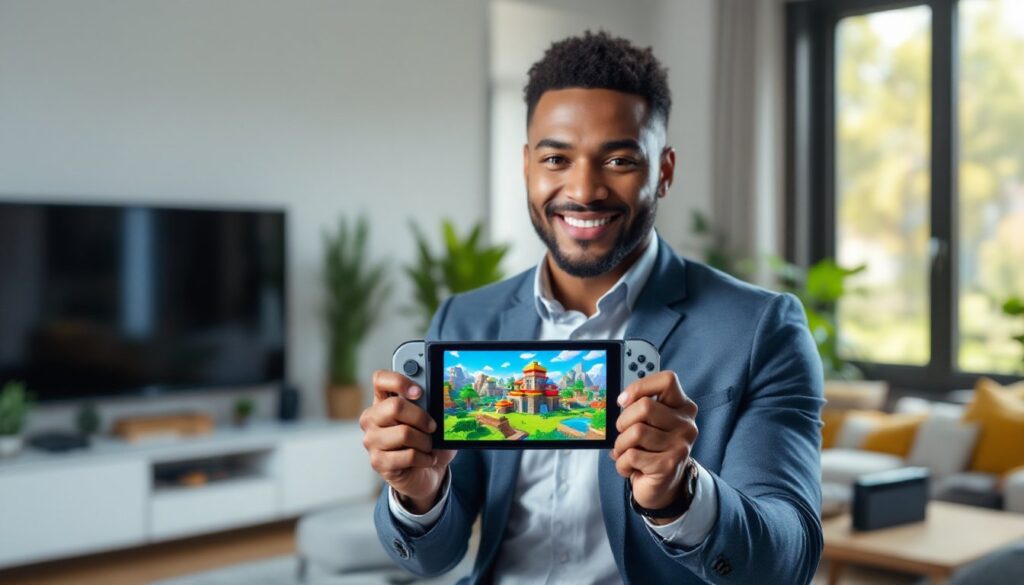
The Switch’s hybrid design is a natural fit for Minecraft’s open-ended gameplay. You can dock it for big-screen building sessions with friends, then undock mid-game and continue in handheld mode without skipping a beat. That seamless transition is something no other version offers, not PC, not PlayStation, not even mobile.
Portability matters because Minecraft thrives on those “just five more minutes” moments. A quick mining run during lunch breaks, a redstone project tweaked on the train, or cooperative exploration with friends using local wireless at a café, the Switch makes all of it possible. The form factor also shines for younger players who want independence from a TV or gaming PC.
Battery life on the OLED model (the current flagship Switch as of 2026) averages 4.5 to 6.5 hours for Minecraft, depending on brightness and render distance settings. That’s solid for portable sessions, though power users will want a portable charger for marathon builds. The physical controls beat touchscreen-only mobile versions, and the Joy-Cons support motion aiming for precision bow shots, a small detail that competitive PvP players appreciate.
Another advantage: the Switch ecosystem’s family-friendly approach means parental controls are robust and easy to configure. Parents can limit playtime, online interactions, and eShop purchases without digging through menus like on other platforms.
Getting Started: Setup and Installation
Choosing Between Physical and Digital Versions
The physical cartridge and digital download both run Minecraft: Bedrock Edition (as of version 1.20.81, the latest stable build in early 2026). The gameplay is identical, so the choice comes down to convenience versus collection.
Physical pros:
- Resale value if you decide to move on
- No storage space consumed on the Switch’s internal memory
- Shareable between consoles (though saves don’t transfer with the cart)
Digital pros:
- Instant access without swapping cartridges
- Can’t lose or damage the game
- Faster load times (marginal, but measurable, roughly 2-3 seconds faster menu boot)
Storage-wise, the digital version requires about 1.4 GB of base space, plus additional room for worlds, texture packs, and DLC. If your Switch has the standard 32 GB internal memory, you’ll want a microSD card (128 GB minimum recommended) to avoid constant storage management.
Account Requirements and Nintendo Switch Online
Playing solo requires no subscriptions, just download or insert the cartridge and start crafting. But multiplayer and cloud saves require a Nintendo Switch Online membership ($19.99/year for individual, $34.99/year for family plan as of 2026).
You’ll also need a Microsoft account linked to your Switch profile. This is mandatory for cross-platform play, Realms access, and Marketplace purchases. The linking process happens on first launch and takes about two minutes. Keep your Microsoft credentials handy, Switch’s on-screen keyboard isn’t fun for typing long passwords.
One quirk: if you’re upgrading from an older Switch to an OLED or Switch 2 model (rumored for late 2026), your worlds transfer via cloud save only if you have Nintendo Switch Online active. Local backups aren’t an option for Minecraft on Switch, so don’t let that subscription lapse if your worlds matter.
Gameplay Features Unique to Nintendo Switch
Touchscreen Controls in Handheld Mode
The Switch’s touchscreen adds a layer of control flexibility that console players don’t normally get. In handheld mode, you can tap inventory slots, drag items, and even navigate menus faster than with button inputs. It’s not a full touch-first interface like Pocket Edition, but it’s useful for inventory management during crafting marathons.
Touchscreen aiming isn’t supported for combat or block placement, though, those still require stick or motion controls. Some players toggle between touch and buttons mid-session depending on the task, which feels natural after the first few hours.
Local Wireless and Split-Screen Multiplayer
Local wireless lets up to eight Switch consoles connect without an internet connection. Each player needs their own Switch and copy of the game, but it’s perfect for LAN parties or family sessions when Wi-Fi is sketchy. Performance holds steady even with eight players as long as the host’s world isn’t too large or heavily modded with Marketplace content.
Split-screen supports up to four players on a single Switch in docked mode. Each player needs a separate controller (Joy-Con pair, Pro Controller, etc.). The screen divides into quadrants, and render distance automatically scales down to maintain 30 FPS. It’s cramped on smaller TVs, but functional, and still the easiest way to introduce friends to the game without additional hardware.
Cross-Platform Play and Progression
Bedrock Edition means full cross-platform compatibility with Xbox, PlayStation, PC (Windows), iOS, and Android. Your Microsoft account syncs worlds, achievements, and Marketplace purchases across devices. You can start a world on Switch during a commute, then continue it on PC at home with the same progress intact.
Cross-play works in both Realms and player-hosted worlds. Framerate and render distance differences between platforms are noticeable, PC players in the same world will see farther and smoother, but gameplay synchronizes cleanly. Just be aware that cross-platform sessions can expose you to platform-specific bugs, especially after major updates when different devices receive patches at different times.
Performance Comparison: Switch vs. Other Platforms
Render Distance and Graphics Quality
The Switch caps render distance at 14 chunks in docked mode and 12 chunks in handheld. For context, PC Bedrock defaults to 20+ chunks, and Java Edition players often run 32 or higher with beefy rigs. That means distant terrain and structures pop in later on Switch, which can feel limiting when scouting for biomes or planning large builds.
Graphics run at 1080p docked and 720p handheld, both at medium-equivalent settings. Water reflections, shadows, and particle effects are simplified compared to PC or Xbox Series X. Fancy graphics options (ray tracing, high-res textures) aren’t available. It’s clean and functional, but not cutting-edge.
Chunk loading hiccups happen occasionally, especially in heavily built areas or when flying with elytra at high speed. The game prioritizes stability over visual fidelity, which is the right call, crashes are rare, even in complex redstone contraptions.
Frame Rate and Loading Times
Minecraft on Switch targets 30 FPS in both docked and handheld modes. It hits that target consistently in vanilla worlds, but drops to the mid-20s in crowded multiplayer servers or worlds with extensive redstone automation. Turning off smooth lighting and reducing render distance can claw back a few frames.
Loading times (main menu to world spawn) average 18-22 seconds from the digital version, slightly longer from cartridge. World saves happen in the background and rarely cause stuttering. Compared to current-gen consoles like PS5 or Xbox Series X, which load in under 10 seconds, the Switch feels slower, but it’s in line with other portable platforms.
For players used to 60 FPS on PC or current-gen consoles, the 30 FPS cap takes adjustment. Movement and camera panning feel less responsive, especially in PvP. Competitive players should lower sensitivity and enable motion controls to compensate.
Essential Tips for Switch Players
Optimizing Controls and Button Mapping
The default control scheme is serviceable but not ideal. Here are the key remaps veteran players recommend:
- Swap crouch and sprint: Putting crouch on left stick click prevents accidental falls during bridging.
- Move jump to a shoulder button: Easier parkour and combat mobility, especially for PvP.
- Enable auto-jump for casual play: Reduces stick fatigue during exploration, though serious players turn it off for precision.
Motion controls add gyro aiming for bow and crossbow shots. Sensitivity defaults to 50%, bump it to 65-70% for faster target tracking. It won’t match mouse precision, but it’s noticeably better than stick-only aiming.
Pro Controller users get longer battery life and better ergonomics than Joy-Cons, which matters during multi-hour sessions. The d-pad also helps with quick inventory swaps.
Managing Storage and World Saves
Worlds can bloat fast, especially with extensive exploration or large structures. A single mature survival world often hits 150-300 MB. Multiply that across multiple worlds, add Marketplace packs (some texture packs exceed 200 MB), and you’ll fill 32 GB internal storage quickly.
Best practices:
- Archive old worlds: Export them to cloud save or delete locally if you’re done.
- Limit active texture packs: Uninstall packs you’re not using: they consume space even when inactive.
- Upgrade to a 128 GB or 256 GB microSD card: U3-rated cards ensure fast read/write speeds for world loading.
Nintendo Switch Online backs up saves automatically, but only if you’re connected to Wi-Fi when the console is in sleep mode. Manual backups aren’t an option, so subscription lapses risk data loss.
Battery Life Optimization for Handheld Play
Minecraft is a battery hog in handheld mode. Tweaking settings can stretch playtime significantly:
- Lower brightness to 60-70%: Still visible indoors and saves 30-40 minutes of battery.
- Reduce render distance to 8-10 chunks: Cuts GPU load without killing immersion.
- Disable smooth lighting and particles: Minimal visual impact, noticeable battery gain.
- Airplane mode for solo play: Wi-Fi polling drains power even if you’re offline.
With these tweaks, the OLED model reliably hits 5.5-6 hours. Original Switch models (2017-2019) max out around 4 hours due to older battery tech.
Multiplayer and Online Features
Setting Up Realms on Switch
Realms is Mojang’s official subscription service for private, persistent servers. As of 2026, Realms costs $7.99/month for up to 10 players or $3.99/month for a 2-player realm. The server runs 24/7, so friends can log in even when you’re offline, ideal for collaborative builds or long-term survival worlds.
Setup takes about three minutes:
- Open the Worlds tab and select “Create New Realm.”
- Choose a subscription tier and confirm payment via Microsoft account.
- Upload an existing world or start fresh with a template.
- Invite players via Gamertag or share a Realm code.
Realms support cross-platform players, so Xbox and mobile friends can join your Switch-hosted realm without issue. The service auto-backs up worlds daily (up to 30 days of history), which is clutch if a creeper explosion or griefer ruins your base.
Performance is stable for up to 10 concurrent players, though lag spikes happen when multiple players explore new chunks simultaneously. Realms also cap render distance at 10 chunks, slightly lower than solo play.
Joining Servers and Community Worlds
Featured servers (The Hive, Mineplex, Lifeboat, etc.) are pre-populated in the Servers tab. They’re free to join with Nintendo Switch Online, though some offer paid cosmetic upgrades. These servers host minigames, faction PvP, and custom game modes that vanilla Minecraft doesn’t support.
Custom server support is limited on Switch compared to Java Edition. You can only join Bedrock-compatible servers, and the server list doesn’t allow manual IP entry, servers must be whitelisted by Mojang or added via workarounds (using a PC to edit server files, then syncing via cross-platform account).
Community worlds from the Marketplace often include adventure maps, parkour challenges, and modded survival experiences. Marketplace packs range from free to $10+, with frequent sales.
Marketplace, Add-Ons, and DLC Content
Navigating the Minecraft Marketplace
The Marketplace is Bedrock’s official storefront for community-created content: texture packs, skin packs, adventure maps, and mash-up packs (bundled themes with textures, skins, and worlds). Purchases use Minecoins, Minecraft’s premium currency (roughly $1 = 300 Minecoins).
Marketplace highlights for Switch players:
- Top texture packs: Natural, Clarity, and Faithful (HD reworks of default textures).
- Best adventure maps: The Titanic (recreation with puzzles), Jurassic World (dinosaur survival), and SkyBlock variants.
- Skin packs: Licensed content from Marvel, Star Wars, and Sonic.
Switch-specific limitation: Some high-res texture packs (1024x or 512x) don’t perform well. Stick to 128x or 256x packs to avoid frame drops. The Marketplace doesn’t filter by platform performance, so check reviews or YouTube footage before buying.
Best Texture Packs and Skins for Switch
For performance and aesthetics, these packs run smoothly on Switch:
- Natural Texture Pack (256x): Realistic wood and stone, minimal FPS impact.
- Clarity (128x): Bright, colorful overhaul that pops on the OLED screen.
- City Texture Pack (128x): Ideal for modern builds, includes custom block variants.
Skins are purely cosmetic and have zero performance cost. The default selection is limited, but Marketplace skin packs add hundreds of options. Creating custom skins on PC (via websites like Skindex) and importing them via Microsoft account sync is also free and takes about 10 minutes.
Some players prefer sticking with community datapacks for custom content, but Switch’s limited file access makes that impractical compared to PC Java Edition.
Common Issues and Troubleshooting
Connection Problems and Network Errors
The most frequent issue: “Unable to connect to world” when joining friends or Realms. Common fixes:
- Check NAT type: Go to Switch Settings > Internet > Test Connection. NAT Type A or B is required for multiplayer. Type D or F blocks connections: you’ll need to configure port forwarding on your router (ports 19132-19133 UDP for Bedrock).
- Restart the game: Minecraft’s session token occasionally expires. Close the software completely and relaunch.
- Verify Microsoft account login: Go to Settings > Profile and ensure your Microsoft account shows as signed in. Re-linking fixes most “not authenticated” errors.
- Update the game: Auto-updates sometimes fail. Manually check for updates via the Switch home menu (press + on the Minecraft icon > Software Update).
If you’re stuck on “Locating server” for Realms, the issue is usually server-side. Check Minecraft’s status page or social media for outage reports.
Lag, Crashes, and Performance Fixes
Lag in multiplayer is often tied to the host’s render distance or world size. If you’re hosting, drop render distance to 8 chunks and limit active redstone contraptions. Guests should close background apps and ensure their Switch isn’t thermal throttling (overheating reduces performance).
Crashes are rare but happen most often after major updates. Version 1.20.81 (current as of March 2026) introduced occasional crashes when opening the Marketplace while in a world. Temporary workaround: exit to main menu before browsing the Marketplace.
For persistent lag:
- Clear old chunks: Use the “Optimize World” option in world settings (converts old terrain data to new format, reduces load).
- Disable experimental features: Toggles like “Caves & Cliffs” or “Wild Update” features can cause instability in older worlds.
- Reinstall the game: Corruption happens. Back up saves to cloud, delete and redownload Minecraft.
Players dealing with inventory management slowdowns can use the /clear command to purge excess items, though that’s a nuclear option.
Conclusion
Minecraft on Switch isn’t the most powerful version, but it’s arguably the most versatile. The portability, solid multiplayer options, and cross-platform flexibility make it a top pick for players who value convenience alongside creativity. Sure, render distance is limited and the 30 FPS cap won’t wow anyone, but the trade-off is a stable, pick-up-and-play experience that fits into any lifestyle.
Whether you’re deep into redstone automation, mining expeditions, or just building fantasy castles in creative mode, the Switch delivers the core Minecraft loop without compromise. With the right settings tweaks and a decent microSD card, it’s a platform that’ll keep you crafting for years.